

Putting a syllabus into Google Calendar means a lot of looking back and forth: find the exam date in the PDF, create an event, type the course name, then go back for the next one. By the time you're on your third course, you've spent a fair bit of time copying information you already had.
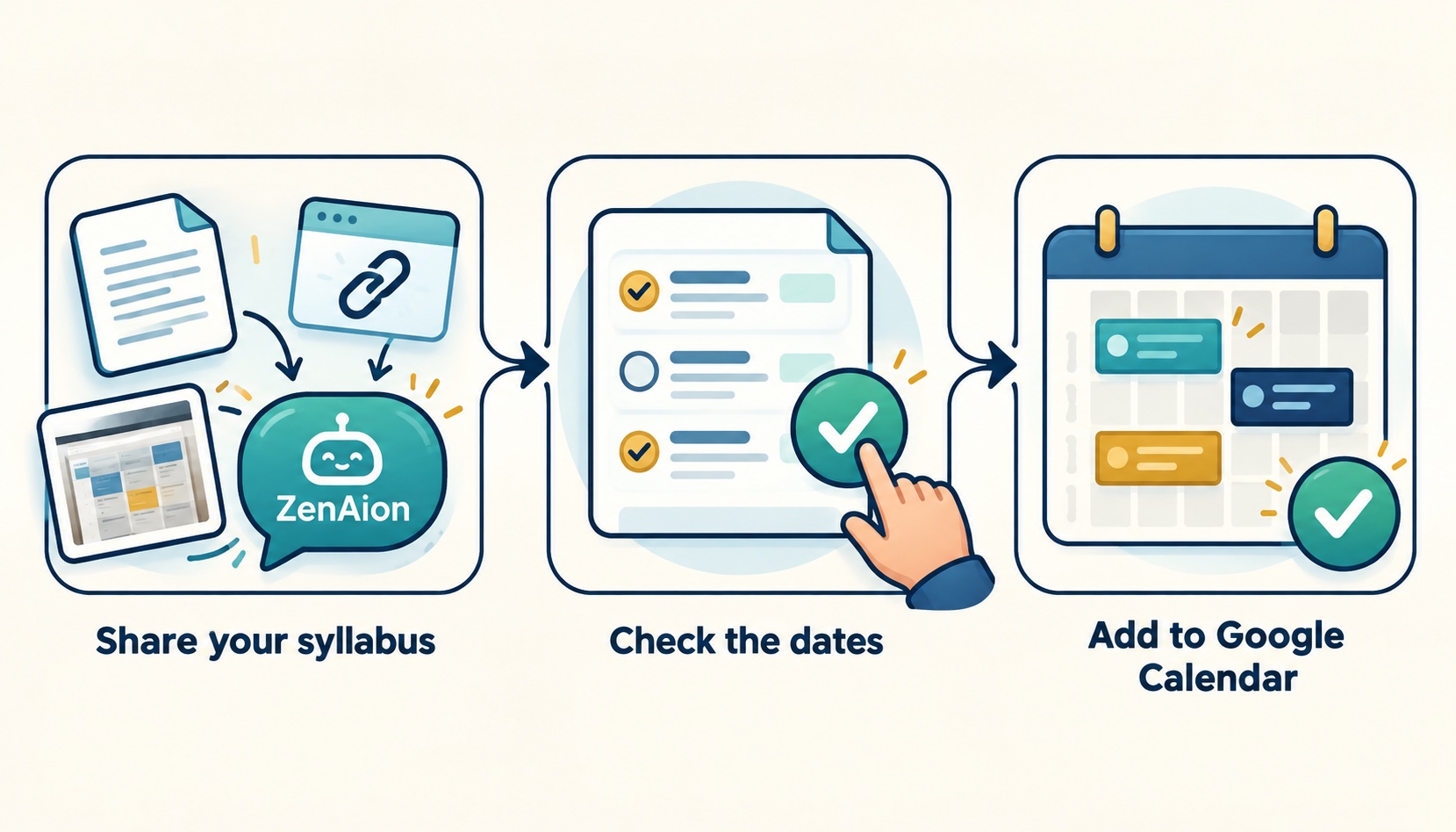
With ZenAion, you can share the syllabus and ask AI to pick out the deadlines. After you've checked them, its Google Calendar connector can put them on your calendar.
Start with one syllabus PDF, link, or screenshot
Open ZenAion and share your syllabus PDF, course link, or timetable screenshot. Pick one course for the first pass; a short list is easier to check.
You can ask:
Find the assignment deadlines and exams in this syllabus. Show me the dates and where you found them before adding anything to Google Calendar. Ask me if something's unclear.
Leave readings out if you mainly want reminders about things you have to hand in. You can always add more later; a calendar full of every chapter and optional activity can be hard to scan.
If the syllabus sits behind a Canvas or Blackboard login, the link alone won't give ZenAion access. Open it yourself and share the relevant text or clear screenshots. Screenshots also work if your chat won't accept the PDF. Keep the course name and the full date visible when you crop them.
Add the dates to Google Calendar
Connect Google Calendar in ZenAion, choose your Google account, and follow the prompts to allow access. Then tell it where the events should go. If you have a separate Coursework calendar, use that. Putting “BIO 101” in the event titles will also help when several classes have something called “Quiz 2.”
Before you add anything, look back at the syllabus. Check that you're using the dates for your class section, and whether a Friday deadline means 5 PM or 11:59 PM. If an exam date hasn't been announced, leave it out for now.
For an online course, say which time zone the professor uses. “These deadlines are in New York time; I'm in Singapore” gives ZenAion something clear to work with. Ask it to show one deadline in both time zones before adding the events.
When the list looks right, tell it: “Add these to my Coursework calendar.” The connector lets ZenAion create the events directly, so there's no calendar file to download and import. Open Google Calendar to make sure they've arrived, and check that your reminders are set the way you want.
Add your weekly class schedule too
A timetable screenshot works as a starting point. Tell ZenAion the semester's start and end dates, along with any breaks: “Add these Monday and Wednesday classes for this semester, but skip the holiday week marked here.”
Have it show you the planned dates first. Check the first week, the last week, and the breaks; a timetable may show a weekly pattern without saying when it stops.
Already using the Canvas calendar?
If your course's Canvas calendar feed has everything you need, keep using it. And if you're only missing two or three dates, adding them yourself may be the quickest option.
The awkward part is the work listed elsewhere. A student in this Canvas discussion had already exported their to-do list to Google Calendar and still missed an assignment. A calendar export can look complete even when you need to check another page.
Include those announcements with the syllabus, and ask ZenAion to compare the dates with what's already on your calendar. Have it add only the missing ones.
When your professor moves a deadline
Later in the semester, a lab report gets an extension. Bring the announcement into the same conversation and ask ZenAion to find the existing event, show you the new date, and update it once you've confirmed. Include the course name so it finds the right lab report.
You do need to bring it the update. Sharing a syllabus once doesn't mean ZenAion will keep checking future course announcements. If those announcements tend to get lost in your inbox, our guide to sorting email with AI covers that part.
To try it, open ZenAion with one syllabus. Get that course's deadlines into your calendar before moving on to the next one.



留下評論
僅供預覽:留言只在目前頁面顯示,不會儲存或發布。
評論 (0)
暫無評論。